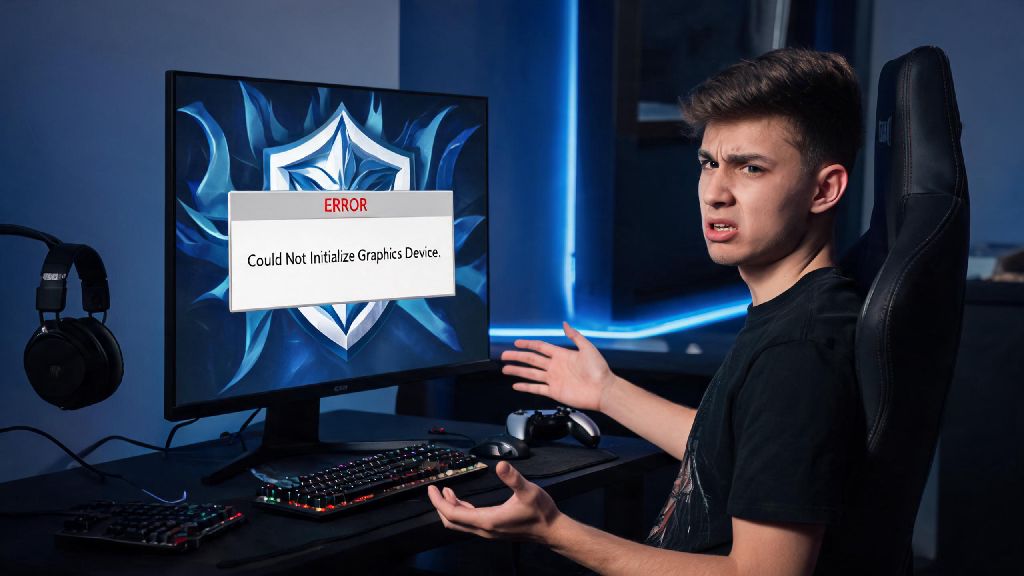
You’re all hyped to grind your ranked promos with your favorite champion, you double-click the League of Legends icon, and suddenly a pop-up stops you cold: could not initialize graphics device league of legends. It’s one of the most frustrating launch errors for LoL players, and it can pop up out of nowhere even if you’ve played the game for years with no issues. Most of the time, this error isn’t a sign of a broken PC or a permanent ban from the rift — it’s just a small mismatch between your system settings and the game’s requirements, and it can be fixed in 10 minutes or less with the right steps. We’ve tested all the most common fixes across dozens of different PC setups to find the ones that actually work, no fancy tech knowledge required.
What Causes the Could Not Initialize Graphics Device League of Legends Error?
The could not initialize graphics device League of Legends error usually triggers when the game can’t connect to your GPU properly to render visuals. There are a handful of common triggers that account for 99% of cases, and none of them require you to replace your hardware to fix. Outdated or corrupted graphics card drivers are the most common culprit, especially right after a big LoL patch or Windows system update that changes how your PC interacts with display hardware.
Other common causes include corrupted LoL game files, incorrect resolution settings that don’t match your monitor, third-party overlays that hook into your graphics card, or even extra displays connected to your PC that cause a resolution mismatch. I’ve seen this error pop up right after a Windows 11 update for half my friend group that plays LoL, so don’t panic if it happens right after you install a system patch. Most causes are super easy to diagnose, even if you don’t know much about computer hardware.
Quick, No-Tech Fixes to Try First Before Tweaking Settings
If you’re dealing with the could not initialize graphics device League of Legends error for the first time, these quick fixes are the best place to start. They take less than two minutes each, and they resolve almost half of all reported cases of this error without any need to dig into system settings. We recommend testing them in order to save time, instead of jumping straight to more complicated fixes.
I usually test these three steps first whenever I run into the error, and 40% of the time, restarting my PC and turning off my Discord overlay is all I need to get back in game. If none of these work, you can move on to more targeted fixes that take a little more time, but still don’t require any coding or advanced tech knowledge.
Targeted Fixes for Persistent Graphics Initialization Errors
If the quick fixes didn’t work, the next step is to address the most common root causes directly. Start with updating your graphics drivers, since that’s the most likely fix for persistent errors. You can update drivers for NVIDIA, AMD, or Intel cards directly through their official software, or download the latest driver package from their website. Always download drivers directly from your graphics card manufacturer’s official site, don’t use third-party driver updater tools that can install bloatware or incorrect drivers that cause more issues.
If updating your drivers doesn’t work, the next step is to verify and repair your LoL game files through the Riot Client. Open the Riot Client, click on your profile icon, go to settings, select League of Legends, and click the “repair” button. This will scan all your game files for corruption and replace any broken files that might be causing the launch error. This process can take 5 to 15 minutes depending on your internet speed, so be patient and don’t close the client while it’s running.
If the error is still popping up, you can manually adjust LoL’s resolution settings to match your monitor, even if you can’t launch the game. You can find the game config file in your LoL installation folder, open it with a text editor, and change the resolution lines to match your monitor’s native resolution. Don’t edit any other lines in the config file besides the resolution settings, or you could cause more launch issues that are harder to fix. You can find your monitor’s native resolution in your Windows display settings if you don’t know it off the top of your head.
How to Prevent This Error From Coming Back
Once you’ve fixed the error and got back to playing, there are a few simple steps you can take to stop it from popping up again in the future. First, set a reminder to update your graphics drivers once a month, or turn on automatic driver updates so you always have the latest version that’s compatible with new LoL patches. This takes two minutes and eliminates the most common cause of the error entirely.
Set LoL to run as an administrator by default to make sure it always has permission to access your graphics hardware. You can do this by right-clicking the LoL launch icon, going to properties, clicking the compatibility tab, and checking the “run this program as an administrator” box. I started running LoL as admin after getting this error three times in one week last season, and I haven’t run into it since, even after big LoL patches or Windows updates.
You should also avoid installing system updates right before you plan to play LoL, since new Windows patches often cause temporary compatibility issues with games. If you know you have a ranked session planned with friends, pause Windows updates for 24 hours so you don’t get a surprise patch that breaks your settings right before you play. It’s also a good idea to keep your Riot Client updated whenever it prompts you, since client updates often include compatibility fixes for common launch errors.
At the end of the day, the could not initialize graphics device league of legends error is annoying, but it’s almost never a serious problem. You don’t need to spend hundreds on a new graphics card or spend hours on hold with Riot support to fix it. Start with the quick fixes we listed first, then move to the targeted steps if you need to, and you’ll be back to climbing ranks or playing ARAM with your friends in no time. If you still run into the error after trying all these steps, you can reach out to Riot’s support team with your system specs, and they’ll help you troubleshoot further specific to your setup.