When I first decided to try League of Legends back in college, my first search wasn’t about the best champions for beginners or how to climb ranked. It was how big of a download is league of legends, because my campus internet was notoriously slow, and I didn’t want to wait 6 hours only to run out of storage halfway through. If you’re in the same boat, wondering if you have enough space on your laptop or PC to jump into Summoner’s Rift, this guide breaks down everything you need to know about download sizes across devices, extra space you’ll need for updates, and hacks to get your install done faster.
How Big of a Download is League of Legends Across Platforms?
Exact download sizes can shift slightly with small patches, but we’ve pulled the most recent numbers from direct tests on the official Riot Games client to give you accurate figures. Let’s break it down by device, so you can plan accordingly.
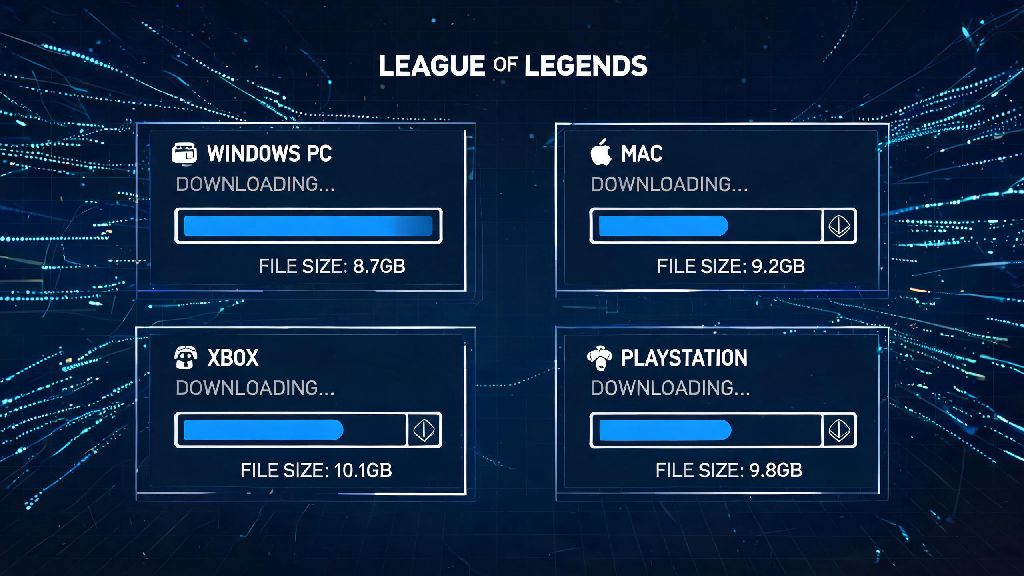
Initial download size for Windows PC clocks in at roughly 8.7GB as of the latest patch. That’s just the base installer file you’ll download first, but don’t stop there. Once you run the installer, it will unpack additional game files, so the full installed size on PC lands between 21GB and 23GB. That number can go up slightly if you opt into extra content like 4K texture packs or multiple language packs.
Mac users will see almost identical sizes, with an initial download of 9GB and a full installed size of 22GB to 24GB. The small difference comes from how the Riot client optimizes files for macOS operating systems. You won’t need extra space just for using a Mac, but you should still leave a buffer as we’ll cover later.
If you’re looking to play the mobile version, League of Legends: Wild Rift, the download size is much smaller. Initial download from the App Store or Google Play is around 3.2GB, with a full installed size of 6GB to 7GB after you load in the first batch of in-game assets. It’s small enough to fit on most modern phones without you having to delete your entire photo library, which is a huge win for on-the-go players.
Extra Storage You’ll Need for LoL Updates and Patches
A lot of new players make the mistake of only clearing enough space for the initial install, then run into errors when the first big patch drops. Riot releases small patches every two weeks to balance champions, fix bugs, and add small event content, and those usually range from 300MB to 1GB. But major season updates, which drop every 3 to 4 months, can be as big as 3GB to 5GB, depending on how much new content is included.
On top of that, the Riot client needs temporary storage space to unpack and install patches, even if the patch itself is small. That means you can’t just have exactly 23GB of free space for your PC install. We recommend leaving at least 30GB of free storage on your drive at all times if you have LoL installed, to avoid update failures or corrupted game files.
If you’ve noticed your LoL install size getting bigger over time without you adding anything, you’re not imagining it. A few common factors make the file size creep up month over month:
You don’t have to worry too much about this extra size unless you’re running low on storage. If you do need to free up space, you can uninstall unused texture packs or language packs directly from the Riot client settings, no full reinstall required.
Factors That Slow Down Your LoL Download Speed
Even if you have enough storage, a slow download can feel like torture when you’re excited to play. Your base internet speed is the biggest factor, of course, but there are other unexpected things that can drag your download out way longer than it needs to be.
Peak server hours (usually 6PM to 10PM local time) are the worst time to download LoL, especially right after a big season update drops. Millions of players are trying to download the same patch at the same time, so Riot’s servers get congested, and your speed will drop even if you have fast internet. If you can, schedule your download for early morning or midday when fewer people are online, and you’ll cut your wait time in half.
Background apps eating up your bandwidth are another common culprit. If you’re streaming 4K Netflix, downloading another game on Steam, or running a video call in the background, your LoL download will get pushed to the side and slow to a crawl. Pause those other activities while you’re installing, and you’ll see a huge difference.
The type of drive you’re installing to also matters, even if it doesn’t technically change your download speed. If you’re installing to an old hard disk drive (HDD), the unpacking process after the download finishes will take way longer than it would on a solid-state drive (SSD). It might feel like the download is stuck, but it’s just your drive working overtime to unpack all the game files. If you have the option, install LoL on an SSD for faster install times and much shorter load screens in game.
Simple Tips to Speed Up Your LoL Installation
You don’t have to be a tech expert to get your LoL download done as fast as possible. These small, easy tips will help you avoid common delays and get into the game faster.
First, use a wired ethernet connection instead of WiFi if you can. WiFi is convenient, but it’s prone to interference from other devices, thick walls, or even microwaves. A wired connection is much more stable, and you’ll see consistent download speeds that match your actual internet plan. I’ve personally had WiFi downloads of LoL take 2 hours, then the same download take 20 minutes when I plugged in an ethernet cable, so the difference is huge.
Second, close any unnecessary background apps before you start your download. That includes streaming services, other game launchers, cloud storage apps that are syncing files, and even extra browser tabs with video content running. You don’t have to close everything, but pausing high-bandwidth activities will free up more space for your LoL download.
If your download gets stuck at a certain percentage, don’t panic. Most of the time, you can just pause and resume your download to fix the issue. If that doesn’t work, restart the Riot client completely, and it will pick up where it left off without you having to start over. You don’t have to delete the partially downloaded files to fix a stuck install, which saves a ton of time.
Last, make sure you’re installing the game to the right drive. Don’t install it to your system drive (usually your C: drive) if it’s almost full. Not only will that slow down your install, but it can also cause performance issues for your entire computer. Pick a drive with plenty of free space, preferably an SSD, and you’ll be good to go.
At the end of the day, knowing how big of a download is league of legends takes a lot of the stress out of getting started as a new player. You don’t have to guess if you have enough space, or wonder why your download is taking forever, now that you have all the facts. Just clear at least 30GB of space if you’re playing on PC or Mac, avoid peak download hours if you can, and use the simple tips we shared to speed up your install. Before you know it, you’ll be picking your first champion and jumping into your first game on Summoner’s Rift. Have fun, and don’t forget to mute your team if they’re being toxic.