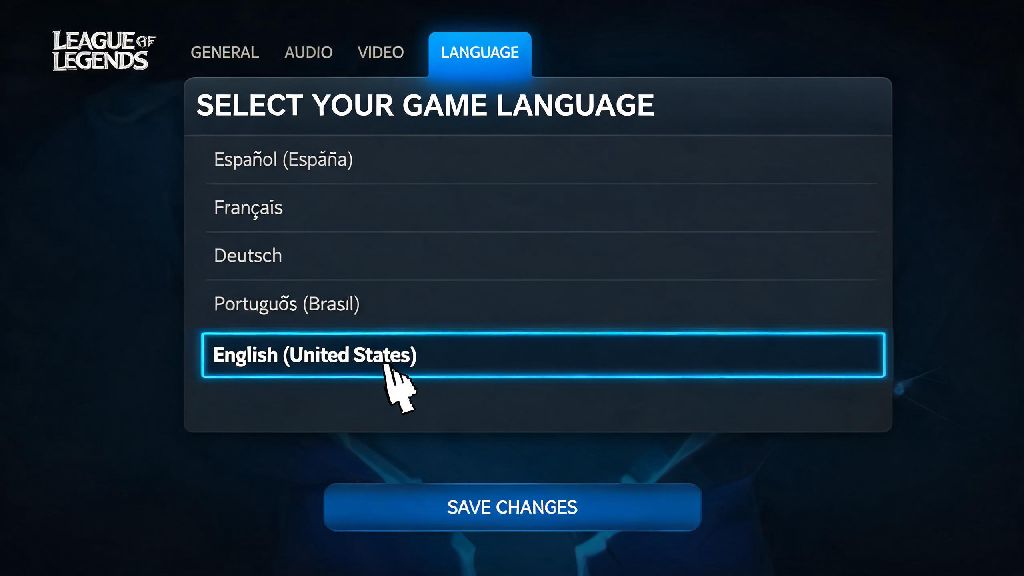
If you’ve ever downloaded League of Legends while traveling abroad, bought a secondhand laptop with a pre-installed client, or just want to switch to your native language after using a friend’s account, you know how frustrating it can be to navigate menus you can’t read. I’ve been there too: I grabbed LoL on a trip to Seoul a couple years back, and spent 20 minutes clicking through Korean menus just to find the settings tab. The good news is Riot has simplified the process a lot in recent updates, and you don’t need to mess with complicated config file edits anymore. In this guide, we’ll walk you through exactly how to change language of League of Legends, plus fixes for the most common issues that pop up during the process.
Step-by-Step Guide to Change Language of League of Legends via Riot Client
This official method works for 90% of players, regardless of what region your account is registered in, and it takes less than 5 minutes to complete. You don’t need to log into the game itself to make the change, which is a huge help if you can’t read the current client language to navigate the in-game menus. Just follow these steps:
Most players won’t run into any issues with this method, but if the option to change language is greyed out, or the change doesn’t stick after you restart the client, we’ve got fixes for that in the next section. You also don’t need to worry about losing any of your game progress or settings, as language changes don’t affect your account data at all.
What to Do If Your LoL Language Setting Is Locked
It’s rare these days, but some players still run into locked language settings, especially if they have an older Riot account that was originally registered to a specific region, or if they’re using a public account at a gaming cafe. The first fix to try is to log out of your account and restart your router, to make sure the client isn’t incorrectly detecting your location based on your IP address. If that doesn’t work, double check that you’re not logged into a guest profile on the Riot Client, as guest profiles often have locked settings to prevent tampering.
If the setting is still locked, you can manually edit the game’s config files to change the language, but this comes with a small warning. Only edit the specific line related to language, and don’t change any other values, as modified game files can trigger Riot’s anti-cheat system. Never download third-party language pack mods from untrusted sites, as these almost always contain malware, and can lead to a permanent account ban if Riot detects modified game files that aren’t approved by the official client.
Can You Change In-Game Voice Line Language Separately From Text?
This is one of the most common questions we get from players, and the answer is yes, Riot added this feature a few years back after thousands of player requests. A lot of players prefer to have text in their native language, but use Korean, Japanese, or another language for voice lines, either to practice a new language, or just because they like the performance of the voice actors from other regions.
To separate the two, follow the same steps we outlined earlier to set your preferred text language, then scroll down to the Voice Language section of the same LoL settings tab in the Riot Client. Select your preferred voice language, save the change, and wait for the voice pack to download. Voice packs are usually 200-500MB, so make sure you have enough space on your hard drive before you start the download, especially if you’re on a laptop with limited storage.
One small thing to note: you can’t change voice language mid-game, so you’ll need to make this change before you launch a match. If you’re playing with friends, it’s also a fun way to mix up your gameplay experience, especially if you all pick a different voice language and try to guess what the announcer is saying during team fights.
Common Mistakes to Avoid When Changing LoL Language
Even though the process is pretty straightforward, there are a few common mistakes that can make the process way more frustrating than it needs to be. The first is not closing the Riot Client fully before making changes. A lot of people minimize the client instead of closing it, so it keeps running in the background, and the language change doesn’t apply when you launch the game again. Take the extra 10 seconds to close all Riot processes before you adjust settings, it will save you a lot of time later.
The second mistake is changing your language while the client is downloading a new game patch. If you switch languages mid-download, the patch can get corrupted, and you’ll have to redownload the entire 15+GB game, which can take hours on a slow internet connection. Always wait for pending updates to install fully before adjusting language settings to avoid this headache.
The third big mistake is contacting Riot support before trying a simple client restart. 9 times out of 10, if the language change didn’t apply, a full restart of the client and your computer will fix the issue. Support gets thousands of tickets a day for this exact problem, so you’ll save yourself and their team time by trying this fix first. If you do end up reaching out to support, never mention that you edited game config files, as that can lead to your account being flagged for potential tampering, even if you only changed the language setting.
Finally, don’t panic if some small parts of the client stay in the old language for a few hours after you make the change. The shop and event pages sometimes take a little longer to update to the new language, as they pull data from Riot’s servers separately from the main client. It will fix itself within 24 hours, so you don’t need to keep re-changing the setting to try to force it to update.
Changing your LoL language used to be a complicated process that required digging into hidden game files, but Riot’s client updates have made it accessible for even total beginners. Whether you’re fixing a misconfigured client after a trip, trying to learn a new language while you queue for ranked, or just prefer to play in your native language, knowing how to change language of League of Legends takes less than 5 minutes if you follow the steps we outlined. I’ve used these exact steps half a dozen times when I travel for work, and the only issue I’ve ever run into was a corrupted patch when I changed language mid-update, which I avoided ever since. If you do hit a persistent snag, you can always reach out to Riot’s support team for help, as long as you stuck to the official client settings to make the change.