If you’re running low on storage, taking a break from ranked queues after a brutal loss streak, or just ready to step away from Summoner’s Rift for a while, knowing how to uninstall League of Legends from Riot Client correctly can save you a ton of headaches down the line. A lot of players rush through the uninstall process and end up with gigabytes of leftover files cluttering their hard drive, or worse, broken Riot Client settings that mess up other games like Valorant or Teamfight Tactics later. I’ve had to fix this exact issue for three of my friends who just deleted the League folder directly instead of using the proper workflow, so I put together this guide to make sure you don’t run into the same problems.
How to Uninstall League of Legends from Riot Client: Official Step-by-Step Workflow
The official Riot Client uninstall method is the safest option for almost all users, as it’s designed to only remove League of Legends without touching your other Riot games or account data. Before you start, close all running Riot games and background processes to avoid errors mid-uninstall.
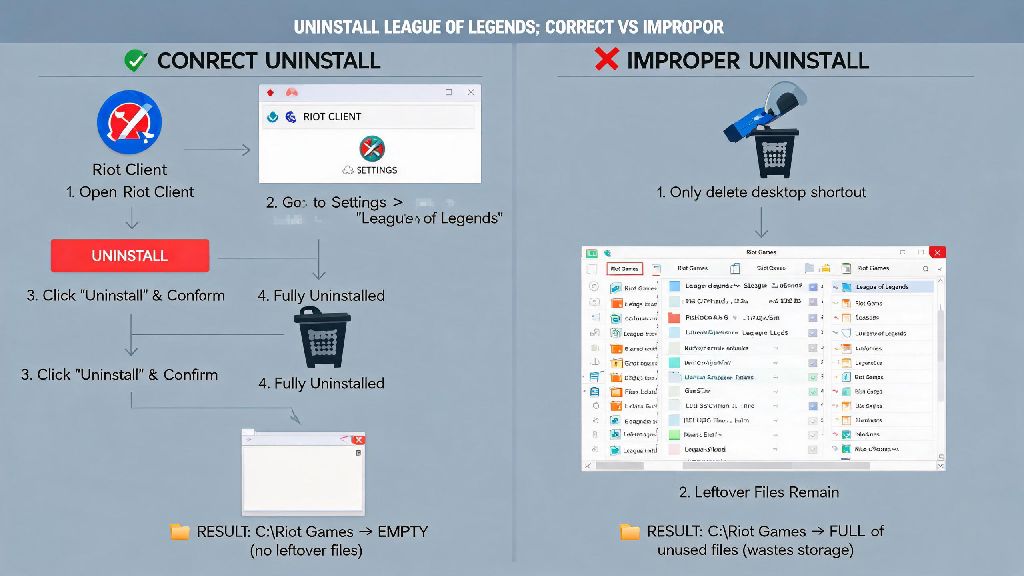
First, open your Riot Client and log into your account if you aren’t already signed in. Navigate to the Library tab on the left side of the client, where you’ll see all Riot games installed on your device. Find the League of Legends tile, then click the three horizontal dots in the top right corner of the tile. Select “Uninstall” from the dropdown menu, then confirm your choice when the pop-up appears.
The uninstall process usually takes between 2 to 10 minutes, depending on your storage speed and how large your League installation is. Don’t close the Riot Client or turn off your device while the process runs, as that can corrupt leftover files and cause issues later. Once the process finishes, you’ll get a confirmation pop-up that League of Legends has been successfully removed from your device.
Common Mistakes to Avoid When Removing League of Legends From Your Device
Even the simple uninstall process can go wrong if you cut corners, and the fixes for these mistakes can take hours to work through. These are the most common errors I see players make all the time:
I see the first mistake all the time from players who aren’t used to managing PC game clients. One of my former ranked teammates did this before a 6-month break, and when he tried to reinstall League last year, the Riot Client kept showing he already had the game installed even though he deleted the folder. He spent two hours troubleshooting before he found and deleted the leftover registry entries.
How to Clean Up Leftover League of Legends Files After Uninstall
The official uninstall process removes 95% of League of Legends files from your device, but there are often small leftover folders that take up extra space, especially if you’ve played the game for years. You don’t need any special tools to clear these out, just a quick check of a few common locations.
First, navigate to C:\Riot Games\League of Legends if you used the default installation path. If the folder still exists after the uninstall, you can delete it entirely, as it only holds leftover patch files and temporary data that no other Riot game uses. Next, check your Documents folder for League of Legends Replays and custom config files. These can take up several gigabytes of space if you’ve saved hundreds of ranked replays over the years, so delete them if you don’t plan to watch them later.
If you’re comfortable using the Windows Registry Editor, you can search for and delete entries specifically tied to League of Legends, but I don’t recommend this for most users. Messing up registry entries can break other apps or system settings, and the extra space you’ll free up is usually less than 100MB anyway. For 99% of players, deleting the leftover game and replay folders is more than enough.
If you plan to reinstall League in the next few months, you can keep your config files to avoid redoing all your keybinds, mini-map settings, and item build preferences when you come back. Just move them to a separate folder on your desktop, and drag them back to the new League installation folder when you reinstall.
What to Do If the Riot Client Uninstall Option Isn’t Working
Sometimes the Riot Client glitches after a corrupted patch or a forced update, and the uninstall button for League of Legends is either greyed out or doesn’t do anything when you click it. You don’t have to factory reset your device to fix this, there are three simple fixes that work for almost every case.
First, force close all Riot processes via Task Manager. Press Ctrl+Shift+Esc to open Task Manager, then scroll through the list of running processes to find all Riot Client, League of Legends, and Riot Vanguard entries. Click each one and select “End Task” to close them completely, then reopen the Riot Client and try the uninstall process again. This is the fix I use most often, and it works about 80% of the time for stuck uninstalls.
If that doesn’t work, use the native Windows uninstall tool instead. Search for “Add or Remove Programs” in the Windows search bar, open the menu, then scroll through the list of installed apps until you find League of Legends. Click it, select “Uninstall”, and follow the prompts to remove the game. This method bypasses the Riot Client entirely, so it works even if the client is completely glitched.
If you’re on a Mac, you can drag the League of Legends app from your Applications folder directly to the trash, then empty the trash to remove the main game files. You can also delete the Riot Client folder from your Library folder to clear all leftover data. If none of these fixes work, you can download Riot’s official dedicated uninstall tool from their support site, which is designed to fix even the most stuck uninstall processes.
At the end of the day, taking two extra minutes to follow the proper process when you uninstall League of Legends from Riot Client will save you from hours of frustration later, whether you’re freeing up space for a new game or just taking a well-deserved break from ranked. You don’t need any special technical skills to do it right, just stick to the official workflow first, avoid the common mistakes we listed, and clean up leftover files if you want to free up every last bit of storage. If you do run into issues, the fixes we covered will work for 99% of cases, so you won’t have to dig through random forum threads for hours to find a solution. Whenever you decide to come back to Summoner’s Rift, your account will be waiting for you right where you left it.