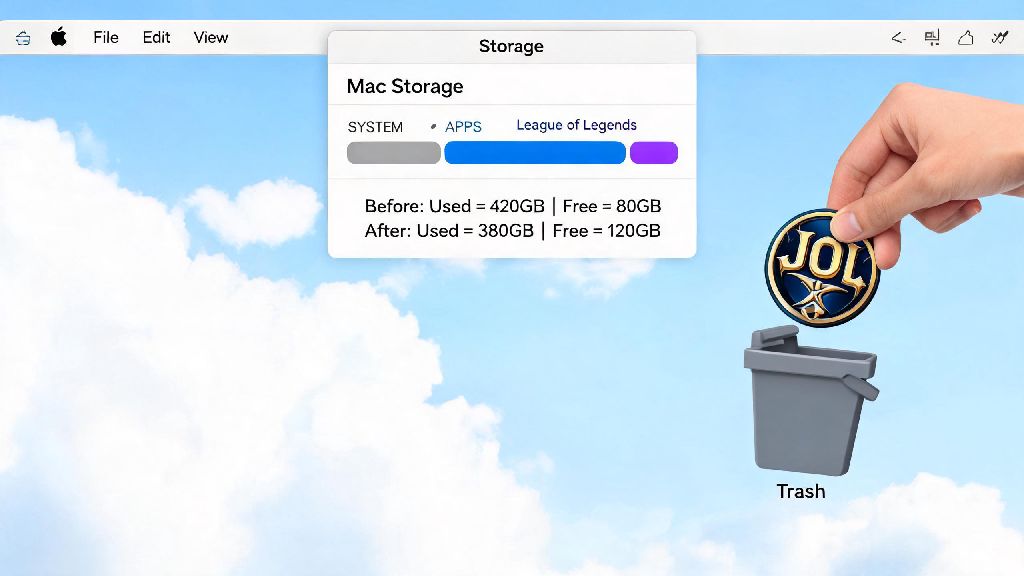
I’ve spent way more hours queuing for League of Legends ranked matches on my Mac than I’d care to admit, but last year when I needed to free up space for a new open-world RPG, I hit a frustrating roadblock. I dragged the LOL app to the Trash, emptied it, and thought I was done – only to find 11GB of hidden game files still taking up space on my hard drive a week later. If you’re in the same boat, or you’re dealing with a glitched client that won’t update, learning how to uninstall League of Legends on Mac the right way will save you hours of headaches and gigabytes of wasted storage. This guide walks you through every tested method, no technical expertise required.
Why Learning How to Uninstall League of Legends on Mac Properly Matters
Most Mac users assume deleting an app is as simple as dragging the icon to the Trash, but that’s rarely the case for large games like League of Legends. The LOL installer drops dozens of hidden files across your system to run smoothly, including cache files, user preference settings, anti-cheat software components, and patch logs. If you only delete the surface-level app, these files can stick around for months, eating up storage that you could use for other apps, photos, or games. You’ll never have to worry about leftover files again once you know how to uninstall League of Legends on Mac the right way.
Worse, leftover LOL files can cause issues down the line if you ever decide to reinstall the game. You might run into constant crashes, update errors, or even anti-cheat flags that prevent you from logging into your account entirely. I learned this the hard way when I tried to reinstall LOL six months after my first lazy uninstall, and I spent three hours troubleshooting errors before I found all the old hidden files clogging up my system.
Proper uninstallation also helps keep your Mac running fast. Old cache and log files can slow down system processes over time, especially if you have a smaller SSD that’s close to full. Taking 10 minutes to fully remove all LOL files will give you an immediate performance boost, along with all that extra storage space.
Quick Method: Uninstall League of Legends via Riot Client
The easiest, lowest-risk way to remove LOL from your Mac is using the official Riot Client uninstall tool. This method is perfect for most users, as it removes almost all core files automatically, and you don’t have to dig into hidden system folders. This official method is the most reliable way to handle how to uninstall League of Legends on Mac for most casual users.
First, make sure you close all Riot-related apps running on your Mac. That includes the League of Legends client, the Riot Client itself, and any Vanguard anti-cheat processes that might be running in the background. Always close all Riot background processes before starting uninstallation – if any part of the app is running, the uninstall tool will fail or leave files behind.
Next, open the Riot Client and log into your account if prompted. Navigate to the League of Legends tab in your game library, then click the gear-shaped settings icon in the top right corner of the screen. Select “Uninstall” from the dropdown menu, then confirm that you want to remove the game when the pop-up appears.
The uninstall process will take 2 to 5 minutes depending on how fast your Mac is. Don't interrupt the uninstall process mid-way to avoid corrupted leftover files – don’t close the Riot Client or put your Mac to sleep until the progress bar is fully complete. Once it’s done, you can close the Riot Client and move on to checking for any remaining hidden files if you want a 100% clean uninstall.
Manual Uninstall: Remove All Hidden League of Legends Files on Mac
If your Riot Client is glitched and won’t open, or you want to make sure every last LOL file is removed from your system, the manual uninstall method is your best bet. This method takes a little more time, but it guarantees you won’t have any leftover files taking up space. If you want to be 100% sure you’ve completed how to uninstall League of Legends on Mac fully, the manual method is the way to go.
First, open your Applications folder, find the League of Legends icon, and drag it to the Trash. You might be prompted to enter your Mac’s admin password to confirm the deletion – go ahead and enter it, then move on to finding the hidden files.
To access your user Library folder (where most app support files are stored), hold down the Option key on your keyboard, click the “Go” menu in the top menu bar, then select “Library” from the dropdown. Be careful not to confuse this with the system-level Library folder, which holds critical macOS files. Never delete files from the system-level Library folder unless you're 100% sure of what they are – you could break your operating system if you delete the wrong file.
Once you’re in your user Library folder, navigate to each of the following locations and delete the League of Legends-related files or folders:
If you also have the Riot Client installed and you don’t plan to play any other Riot games like Valorant, you can delete the entire Riot Games folder in Application Support to remove all Riot-related files at once. Double-check folder names before deleting to avoid removing unrelated system files – it’s easy to click the wrong folder if you’re moving fast.
Once you’ve deleted all the files listed above, right-click on the Trash icon in your dock and select “Empty Trash” to complete the process. If you get a notification that a file is still in use, go back to the previous step to make sure all Riot processes are closed, or restart your Mac before trying to empty the Trash again.
Common Uninstallation Errors and How to Fix Them
Even if you follow the steps above perfectly, you might run into a few common errors when uninstalling LOL on Mac. I’ve dealt with all of these personally, so these fixes are tested and proven to work. These simple fixes will help you complete how to uninstall League of Legends on Mac without any extra hassle.
The most common error is the “file in use” notification when you try to delete LOL files or empty the Trash. This happens when a hidden Riot process is still running in the background, even if you closed all visible windows. To fix this, open Activity Monitor from your Applications > Utilities folder, search for “Riot” in the search bar, then select all Riot-related processes and click the “X” button in the top left corner to quit them. Use Activity Monitor to close all hidden Riot background processes if you get "file in use" errors – this will fix the problem 9 times out of 10.
Another common issue is the Riot Client uninstall tool failing halfway through the process. This usually happens if your client is outdated or corrupted, or if you have a poor internet connection during the uninstall. If this happens, just close the Riot Client and use the manual uninstall method instead – it’s just as effective, and you won’t have to troubleshoot the client itself.
If you reinstall LOL later and still get errors, that means you missed some leftover files during your first uninstall. Go back to the user Library folder and search for “Riot” or “League of Legends” in the search bar, making sure you set the search scope to the current Library folder instead of your entire Mac. Delete any remaining related files, then try reinstalling again. Restart your Mac if you still can't delete leftover files after closing visible processes – this will close any stuck background processes automatically.
At the end of the day, whether you’re taking a break from ranked, freeing up space for new games, or fixing a glitched client, knowing how to uninstall League of Legends on Mac properly makes the whole process fast and stress-free. I used to waste hours trying to fix uninstall errors and delete hidden files by trial and error, but these steps take less than 10 minutes total to complete. You don’t need any fancy tools or technical knowledge to do it right – just follow the steps that fit your situation, and you’ll have all that extra storage back in no time.