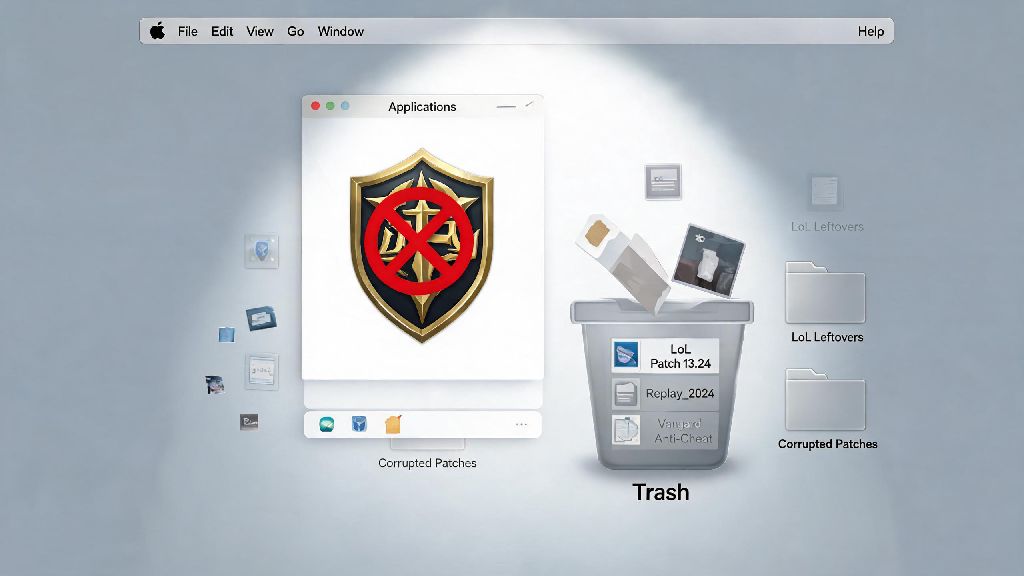
If you’re a casual or ranked LoL player who’s decided to take a break, free up storage for new releases, or fix corrupted game files that cause constant crashes, you’ve probably realized the standard drag-to-trash trick doesn’t get rid of everything. If you’re wondering how to uninstall League of Legends on Mac without leaving gigabytes of hidden junk files cluttering your drive, you’re not alone. I’ve made the mistake of just dragging the app to trash before, and I was shocked when I checked my storage a month later and found 19GB of old LoL patch files, saved replays, and anti-cheat files still sitting on my drive. This guide walks you through all the safe, effective methods to fully remove the game and all its related components from your Mac.
Why Standard Drag-to-Trash Uninstall Doesn’t Work for LoL on Mac
Most regular Mac apps only store their data in the single app bundle you see in your Applications folder, so dragging them to trash removes almost all related files. LoL is different, because Riot Games installs multiple supporting components alongside the main game to keep it running smoothly and prevent cheating. Vanguard’s low-level system integration means it runs in the background even when the game is closed, so it won’t be removed when you trash the main LoL app.
You also have hundreds of patch files, custom keybind configs, saved replays, and error log files stored in hidden system folders that don’t get touched when you delete the app. Hidden leftover files can take up 10-25GB of storage depending on how long you’ve had the game installed, which is a huge waste if you don’t plan to play again anytime soon. Even if you do plan to reinstall later, old corrupted files left behind can cause crashes, login errors, or performance issues when you redownload the game.
Step-by-Step: How to Uninstall League of Legends on Mac Manually
The manual uninstall method is perfect if you want a 100% clean removal, no third-party apps required. It takes a little longer than other methods, but you’ll be sure every single LoL-related file is off your drive when you’re done. Before you start, make sure you’ve fully closed the Riot Client, LoL, and Vanguard to avoid “file in use” errors when you try to delete items. Follow these steps for a full manual uninstall:
Make sure you don’t delete any files you don’t recognize while browsing your Library folder. If you have other Riot games installed like Valorant, only delete the “League of Legends” subfolder inside the main Riot Games folder instead of deleting the whole folder, so you don’t lose data for your other games. This method will fully remove every trace of LoL from your system, so it’s ideal if you’re permanently deleting the game or clearing as much storage as possible.
Alternative Method: Use Riot’s Official Uninstaller for a Faster Process
If you don’t want to dig through hidden system folders, Riot has a built-in uninstaller inside the Riot Client that most players don’t know exists. It’s designed to find and remove almost all LoL-related files automatically, so it only takes a couple of minutes to run. To use it, open the Riot Client, click your profile icon in the top right corner, select “Settings” from the dropdown menu, then find League of Legends in the list of installed games on the left side. Click the “Uninstall” button at the bottom of the page, then follow the on-screen prompts to confirm you want to remove the game.
The official uninstaller is the best option if you plan to reinstall LoL later, because it leaves a small config file with your account credentials and basic settings intact, so you won’t have to re-enter all your information when you redownload the game. The only downside is that it occasionally leaves small log files or old replay files behind, so if you’re trying to free up maximum storage, it’s worth doing a quick 2-minute check of your Application Support folder after running the uninstaller to delete any remaining files. It’s also important to note that you need to have the Riot Client installed to use this method, so it won’t work if you already deleted the client manually.
Common Issues to Fix After Uninstalling LoL on Mac
Even if you follow all the steps correctly, you might run into a few small issues during or after the uninstall process. The most common error is a “file in use” notification when you try to empty your Trash after deleting LoL files. This almost always means Vanguard or a background Riot Client process is still running, so go back to Activity Monitor and force quit all Riot and Vanguard processes before trying to empty the Trash again.
If you notice your available storage didn’t increase as much as you expected after uninstalling, that’s a sign you missed some large leftover files. You can use your Mac’s built-in Storage Management tool to search for “Riot” or “League of Legends” to find any large files you overlooked, most of which will be old patch files or saved replays you forgot about. If you’re uninstalling to fix performance issues, we recommend restarting your Mac after the uninstall process to clear any remaining temporary Riot files from your RAM before you reinstall the game. That way you’ll have a completely clean slate for your new installation, with no corrupted old files causing issues.
At the end of the day, the right uninstall method for you depends on why you’re removing the game and whether you plan to come back to the Rift later. No matter which option you pick, taking the extra 10 minutes to fully remove all associated files will save you from wasting valuable storage space on junk you don’t need. Knowing how to uninstall League of Legends on Mac properly also means you won’t run into corrupted file issues if you decide to reinstall the game down the line. If you’re still seeing leftover Riot Games files after following these steps, a quick search in your Library folder for “Riot” will almost always pull up the last remaining files you need to delete.