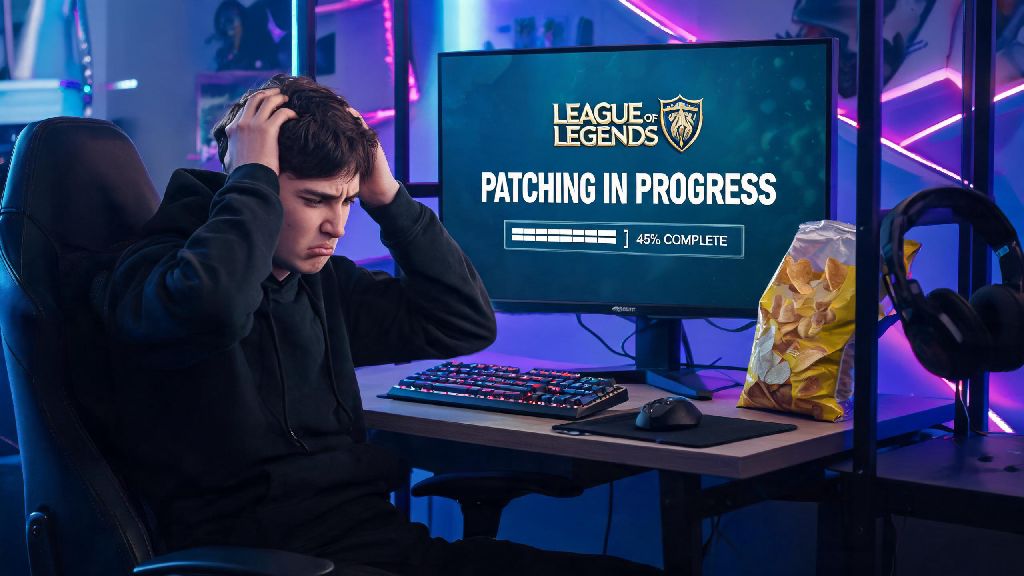
There’s no worse feeling than wrapping up work, grabbing your go-to gaming snack, and opening League of Legends ready to grind through a few ranked matches, only to be met with a random patching screen. You don’t remember seeing any update announcements on social media, and your friend was playing just 30 minutes ago with no issues. If you’ve ever stared at your screen wondering why does my League of Legends say patching when you expected to jump straight into a match, you’re far from alone. Thousands of players run into this exact issue every week, and most of the time it’s a simple, easy to fix problem, not a sign your client is broken beyond repair.
Common Reasons Why Does My League of Legends Say Patching Unexpectedly
Before you panic and start reinstalling the entire game, it helps to understand what’s actually causing the unexpected patching prompt. Most of these causes are completely out of your control, and require very little effort to resolve.
First, Riot uses staggered regional rollouts for almost all game updates to avoid overloading its servers. That means patches go live to small groups of players across different regions over a 2 to 4 hour window, instead of being released to everyone at once. Staggered regional rollouts are the most common cause of unexpected patching, even if you saw other players post about the update going live 2 hours earlier. If you’re in a less populated region, you might get the patch later than players in NA or EUW, or vice versa, depending on the update.
Second, tiny unannounced hotfixes are a regular part of League’s maintenance cycle. If there’s a game-breaking bug with a new champion, a broken item interaction, or a major exploit, Riot will push a small hotfix within hours of the issue being reported. These hotfixes are rarely announced in advance, because the team prioritizes getting the fix out to players as fast as possible to avoid ruining gameplay. I’ve run into this exact scenario multiple times right after a big champion release, when a 200MB hotfix drops without any warning.
Other common causes include corrupted partial patch files from an interrupted update, cached client data glitches, or a background update that got paused when you closed the client last time you played. None of these are serious issues, and all can be fixed in 10 minutes or less.
Quick Fixes to Resolve Stuck or Unexpected Patching Screens
Once you’ve ruled out a scheduled regional patch rollout, you can run through these simple fixes to get past the patching screen and into your match fast. Always start with a full client restart before trying more complex fixes, as half the time this resolves minor cache glitches instantly. When you click the X on the Riot Client window, it often keeps running in the background of your computer, so a full restart will clear any stuck processes.
If a simple restart doesn’t work, try these first three troubleshooting steps:
To verify your game files, open the Riot Client, click your profile icon in the top right corner, select Settings, find League of Legends in the list of installed games, and click the “Verify” button next to the file integrity option. The client will scan all your game files and replace any that are corrupted or missing, which usually takes 5 to 10 minutes depending on your computer speed. This is way faster than reinstalling the entire game, which a lot of players jump to first when they see a patching loop.
Never shut down your computer mid-patch, as this is the top cause of corrupted game files that lead to repeated patching screens later. If your power cuts out or your computer crashes mid-update, you’ll almost always need to verify your files the next time you open the client to fix the issue.
What to Do If Patching Takes Longer Than Usual
Most League patches take between 5 and 20 minutes to download and install, depending on your internet speed and the size of the update. If you’re stuck on the patching screen for over 30 minutes with no progress bar movement, there’s likely a separate issue causing the delay.
The first thing to check is your available hard drive space. Your hard drive needs at least 10GB of free space for League of Legends to download and unpack patch files, even if the patch itself is only 1GB. Patch files are compressed when they download, so they require extra space to unzip and install before the old files are replaced. If you’re running low on space, delete a few unused files or games to free up room, then restart the patch process.
Another common cause of slow or stuck patches is overzealous antivirus or firewall software. Some antivirus programs flag Riot’s patch files as suspicious and block them from downloading or installing, which makes the patching screen hang indefinitely. You can try temporarily disabling your antivirus while the patch installs, but make sure you turn it back on immediately after the patch is complete to keep your device safe. If you’re on a public or shared network, like a college dorm or office Wi-Fi, the network admin might have blocked Riot’s update servers entirely. I’ve run into this issue multiple times when playing at a friend’s apartment complex, and switching to a mobile hotspot for 10 minutes to finish the patch is a quick workaround.
If you use a VPN when playing, try disconnecting it before running the patch. VPNs can slow down download speeds significantly, or even block connections to Riot’s update servers entirely, depending on the server location you’re connected to.
How to Prevent Unexpected Patching Popups in the Future
While you can’t avoid all patch prompts, there are a few simple changes you can make to cut down on unexpected patching screens right when you’re ready to play. These steps take less than 5 minutes to set up, and will save you hours of waiting over the course of a year.
First, enable automatic background patching in your Riot Client settings. This setting lets the client download and install patches in the background while your computer is idle, so you never have to wait for an update when you open the game to play. Enabling background patching cuts down on unexpected wait times by 90% for most players, according to Riot’s own client performance data. You can also adjust your settings to close the Riot Client fully when you click the X button, instead of letting it run in the background, which prevents partial patch downloads from getting corrupted when you shut down your computer.
Second, get in the habit of checking the official Riot server status page 10 minutes before you plan to play if you’re on a tight schedule. The page lists all ongoing patch rollouts, server outages, and maintenance windows for your region, so you’ll know ahead of time if you need to wait for a patch to install before you can play. You can also follow the official League of Legends support account on social media for real-time updates about unexpected hotfixes and maintenance.
Finally, if you see a small update icon in the bottom right corner of the client when you finish playing, let the small update run before you close the client. These tiny hotfixes usually take less than 2 minutes to install, and you won’t have to deal with them next time you open the game to play. This is a tiny habit that makes a huge difference if you play multiple times a week.
At the end of the day, most unexpected patching screens aren’t a sign of a broken client or account issue. Most of the time, it’s just a small hotfix, staggered rollout, or minor cache glitch that takes 2 minutes to fix. Next time you’re confused about why does my League of Legends say patching right when you’re ready to play, run through the simple fixes we covered, and you’ll be on the rift in no time. If you still run into issues after trying all these steps, you can reach out to Riot support for further help, but 99% of cases are resolved with the tips we shared here.