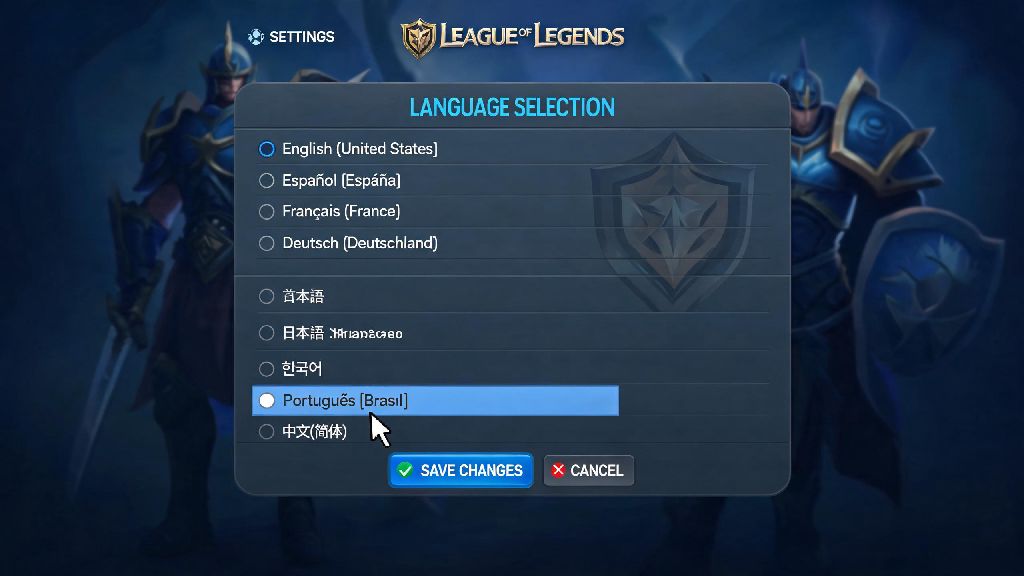
Ever loaded up League of Legends only to find the interface is in a language you don’t understand, or you want to switch to your native tongue to follow champion abilities easier? You’re not alone. Thousands of players adjust their game settings every week to match their preference, and learning how to change the language on League of Legends is a quick, simple process that won’t require you to reinstall the game or mess with complicated file edits. We’ll walk you through every official method, for both PC and mobile, plus common pitfalls to avoid so you can get back to the rift in no time.
How to Change the Language on League of Legends for PC (Official Riot Client Method)
Most players use the official Riot Client to launch LoL, so this is the easiest, most reliable method that won’t risk your account security (third-party file edits can lead to bans, so we don’t recommend those). First, close your game completely if it’s running, then open your Riot Client. Click on the profile icon in the top right corner of the client, then select Settings from the dropdown menu. On the left side bar, find the League of Legends tab under the “My Games” section. Scroll down until you see the “Language” dropdown menu, select your preferred language, then hit Save. The client will download a small language pack, which usually takes 1-5 minutes depending on your internet speed, and once that’s done you can launch the game with your new language applied. This method works for all regions, and is the only safe way if you’re learning how to change the language on League of Legends without running the risk of account penalties.
Adjusting In-Game Audio and Text Language Separately
You don’t have to use the same language for all parts of the game, which is perfect if you’re learning a new language, or you prefer the original voice lines for champions while keeping menus easy to read. Once you’ve launched LoL after updating your Riot Client settings, head to the in-game settings menu by hitting the gear icon in the top right corner of the home screen. Navigate to the Audio tab to select your preferred voiceover language, and the Interface tab to adjust text language for menus, ability descriptions, and chat. Keep in mind that if you pick a language that’s not supported by your current server, some chat messages from other players may show up as unreadable characters, so double check that your selected language is compatible with your region if you play with local teammates. While you wait for any extra audio packs to download, many players pass the time with quick, low-stakes casual games that don’t require full focus between queues. Fans of short, skill-based card games often play Jaiho Rummy to fill 10 minute gaps without pulling their attention away from queue notifications. It’s a popular option for players who want to stay occupied while game updates or language packs finish installing.
Common Issues You Might Face When Changing LoL Language
Even if you follow the official steps exactly, you might run into small snags that stop your language settings from sticking. Most of these are easy to fix without reaching out to Riot support, as long as you know what to look for. The most frequent issues include:
You should never download third-party language packs from untrusted sites, even if they advertise support for languages not officially offered on your server. These files often contain malware, and modifying game files violates Riot’s Terms of Service, which can lead to a permanent account ban. If your preferred language isn’t available for your region, you can submit feedback to Riot’s support team to request it be added in a future patch.
How to Adjust Language Settings for League of Legends: Wild Rift
If you play the mobile version of the game, the process is a little different, but still just as quick. First, open Wild Rift and log into your account. Tap the gear icon in the top right corner to open settings, then select the “General” tab on the left side of the screen. Scroll down until you find the language options for both text and audio, select your preferred option, then confirm the change. The game will restart automatically to apply the new settings, and you’ll be good to go in less than a minute. If you play across both PC and mobile, your language settings won’t sync automatically, so you’ll need to adjust them separately on each device. This is useful if you prefer one language for playing on PC with friends, and another for quick mobile games when you’re traveling.
Changing your game settings to match your preferences makes every match more enjoyable, and now you know exactly how to change the language on League of Legends for any device without risking your account. Take a minute to test different settings if you want to mix and match audio and text languages, and don’t forget to double check that your selected language works with your server if you play with random teammates. You’ll be navigating menus, understanding ability descriptions, and following pings perfectly in no time, so you can focus on climbing the ranks and winning your next match.